Projects that plan ahead
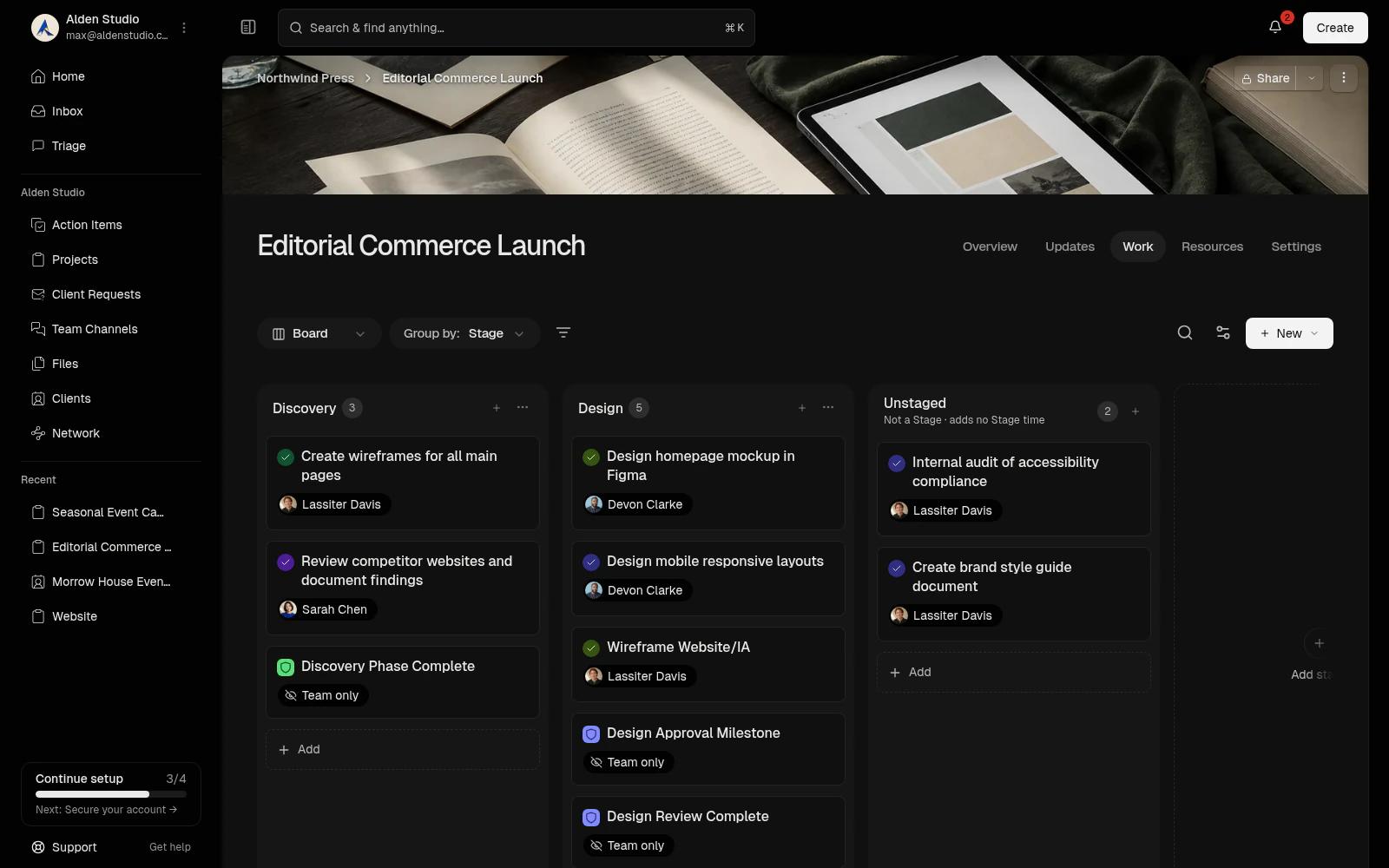
All your project work in one view.
Every project now has a Work tab that brings its tasks and milestones together. Switch between a table, a board and a timeline, whichever suits the moment. Drag tasks and stages into the order you want.
A timeline that keeps you honest.
Watson checks your schedule as you plan. It flags tasks without dates, work set to start before the task it depends on is finished, and projects running past your client’s deadline. Each issue explains what’s wrong, and where it can, Watson suggests a new date you can apply right away.
Plan together without stepping on each other.
When a teammate changes the same work you’re rescheduling, Watson updates your view so you’re always working from the latest plan.
Start from a template.
Kick off a project from a built-in template, or turn one of your own projects into a template. Copies keep your stages, tasks and milestones in order, so every new project starts the way you like to work.
Track time where you work
Start a timer from the top bar or on the task you’re working on. Your time stays attached to the project or task, so you can see what the work took.
Fill in what the timer missed
Add time afterward with a duration or a start and end time. Edit an entry when you need to, and keep personal work in its own entries.
See where the week went
Review your day or week in Timesheet. Use Reports to see hours by client or project, with billable and non-billable time kept separate.
Included in Community and Studio.
Open Time in your Watson workspace to get started.
Your Portal, organized around each client.
We’ve refined the Client Portal permissions to make it even easier to navigate and preview. Everything you share with clients lives there: their projects, requests, files and conversations.
More control over how you work with clients.
For each person at a client, you decide which projects they see and what they can do, including who can approve work and review files. Reviews and approvals happen right in the Portal, so sign-off stays next to the work it’s about. View as client shows you the Portal exactly as that person sees it.
Sign in with a link
Type your email on the sign-in page and press Send Magic Link. We’ll email you a link that signs you in to Watson, your client portal, or the partner app. Each link works once and expires after 15 minutes. Your password still works as before.
If your account uses two-step verification, you can use a link too. You’ll still enter your password after opening it.
Everyday improvements
- Always on the latest version. When we ship an update, Studio offers a one-click reload, so open tabs never fall behind.
- Smoother client previews. The preview banner sits neatly above the Portal, and ending a preview takes you back to the page you started from.
- Smarter @mentions. Suggestions offer only people who can see the conversation.
- Clearer project updates. Update cards in the client Portal show their comment counts, and milestone conversations open in their project.
- Tidier workspace library. Review requests appear only on project resources, where they belong.
- Smarter emoji replacement. Typed smileys turn into emoji only when they stand alone, so ordinary words stay as you wrote them.
- Helpful explanations. When Studio can’t complete an action, it now tells you why.
- Better Help Center search. Searching also matches section headings, hides empty sections, and announces results to screen readers.
- Personalize your workspace. Portal sign-in pages in the new Design Studio, with a history of saved changes.
- Choose primary contacts independently for each client and project.
- Remove client contacts while preserving their Network records and Portal access.
- See what’s due today with labels that follow your local date.
- Keep project Work lists tidy, with subtasks grouped under their parent.
- Send milestone approval requests to eligible teammates, directly in their Inbox.
- Archive a client relationship independently, then restore access without losing history.
- Typing your own company’s web address when adding a client now tells you right away that it’s your own domain.
- Client teammates with view-only access no longer see buttons for things they can’t do, such as new requests or inviting people.
- Overdue issue reminders no longer stop when you have a lot of overdue issues.
- Timeline items you drag keep their new dates while the change saves.
- Tighter privacy on the sign-in pages.